Tool2 min read
Nocturne Chrome Darkmode Extension
A small Chrome extension that gives websites a darker appearance while keeping photos and videos in their original colours.
- Chrome extensions
- JavaScript
- CSS
- Codex
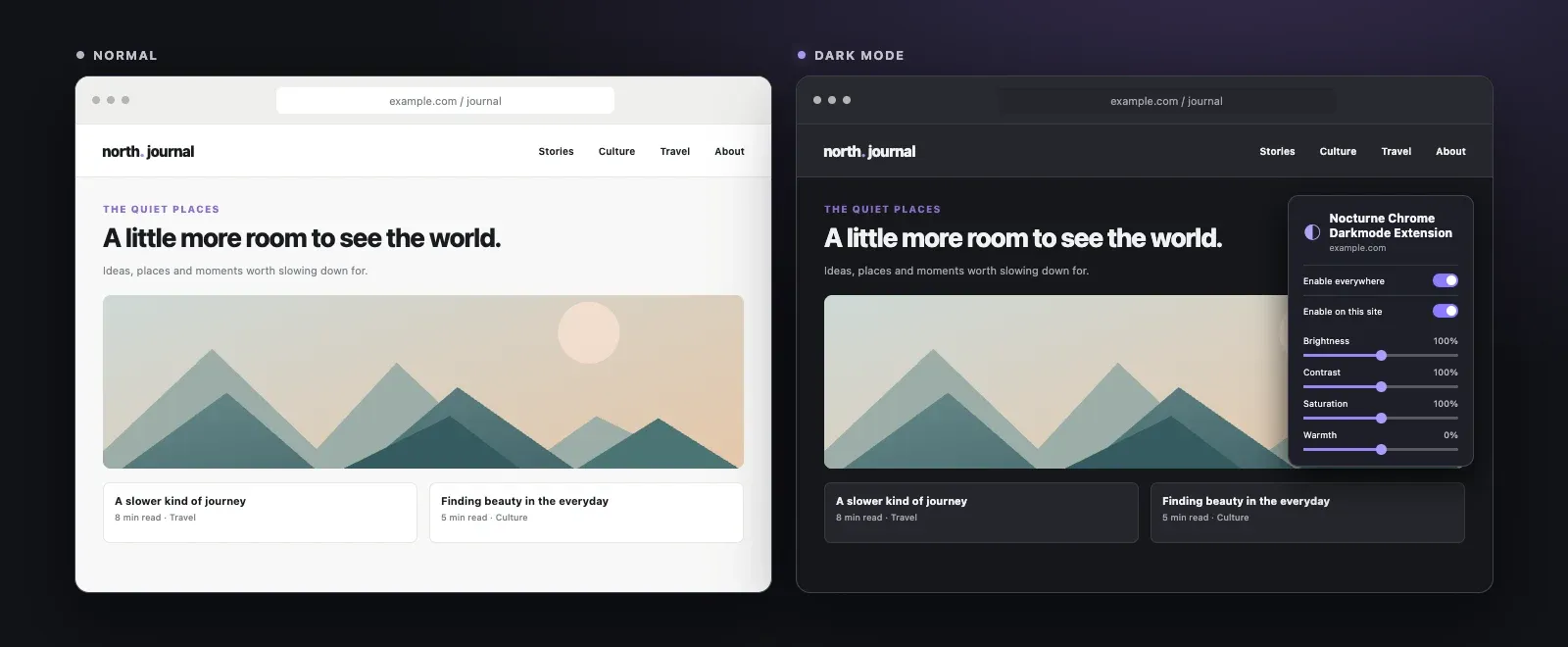
 AI-generated imageAn AI-generated illustration based on the extension's before and after mock-up.
Some websites have a dark mode. Others still turn the whole screen white, even when everything else on my computer is dark. This is a simple way to make those pages easier to read.
Nocturne Chrome Darkmode Extension is a small Chrome extension for that. It looks at the colours a page uses and adjusts light surfaces and text for a darker appearance. It leaves photos and videos in their original colours.
How it works
The extension checks the colours a page uses instead of applying one filter to the whole screen. It keeps already dark surfaces dark and adjusts text for contrast without changing the images. Transparent overlays on photos and video thumbnails stay intact.
When a page changes, the extension processes the affected areas in smaller batches. A stylesheet change triggers a full check. Large or busy pages can still take extra work, so this needs more testing.
Using it
The extension runs locally in Chrome. You can turn it on by default or choose individual sites, and adjust the appearance from the popup. Settings and site exceptions are stored in Chrome’s sync storage; page colours are analysed again when a page loads. There is no AI service running in the extension.
The code is open source, and the repository includes instructions for loading it into Chrome. This is still a personal tool. Some websites will need more work, especially where content is embedded or built inside components the extension cannot access.
Install it in Chrome
The extension is a local set of files. You don’t need to compile it or install any developer tools.
-
Open the GitHub repository using the button above. Click Code, then Download ZIP. Unzip the downloaded file and keep the extracted folder on your computer.
-
Open Chrome and paste this address into the address bar:
chrome://extensions -
Turn on Developer mode in the top right, then click Load unpacked.
-
Select the extracted project folder containing
manifest.json. The extension will appear in Chrome’s extensions list. You can open it from Chrome’s extensions menu and pin it to the toolbar.
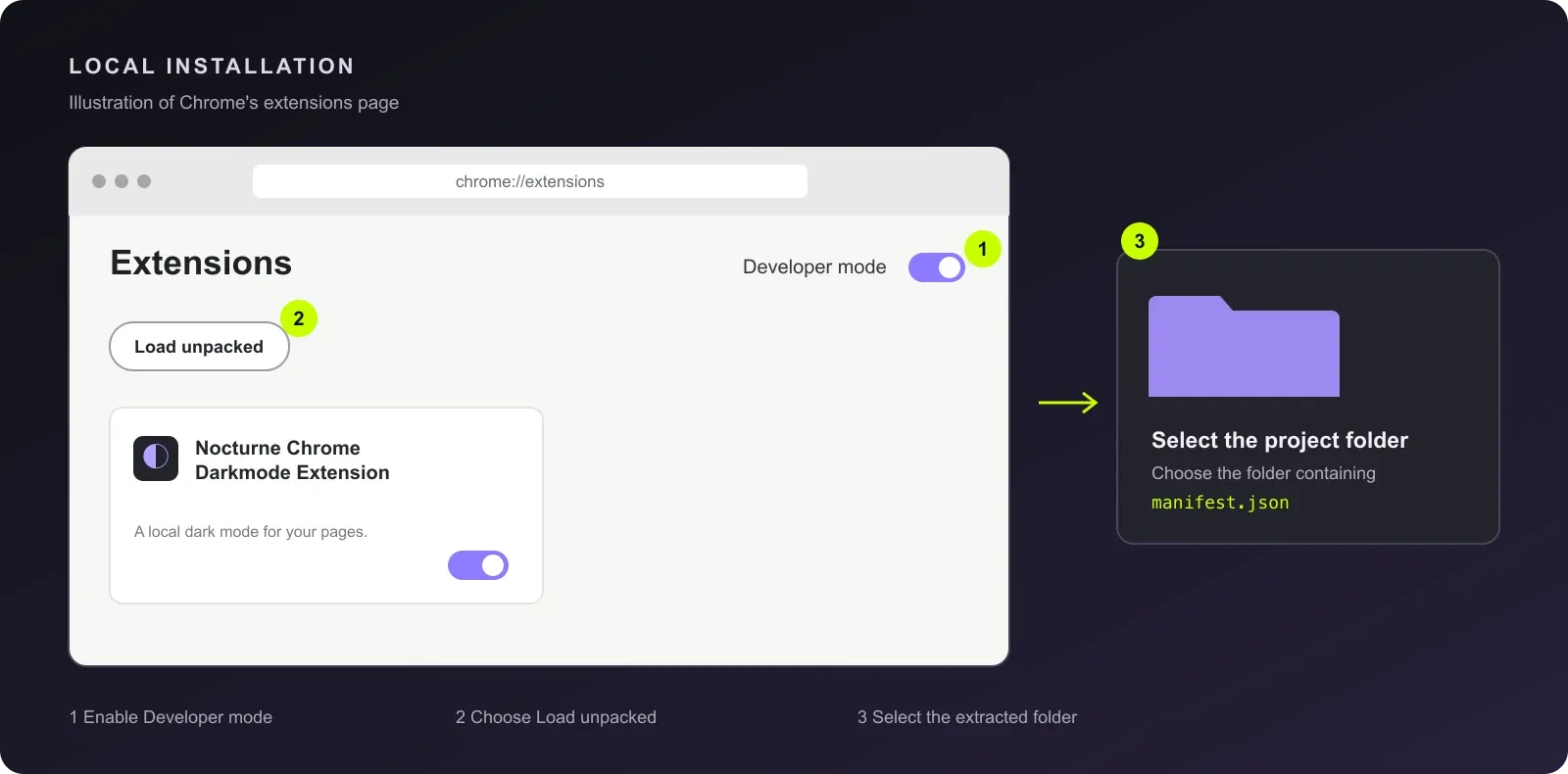
Chrome loads the extension from that folder, so keep it in place. If you move the folder, load it again from the new location. After changing the extension’s files, click its reload button on the extensions page and refresh the website you are viewing.
You can also fork the repository and adapt it to the sites you use. If something does not look right, you can ask Claude, Codex or another coding assistant to inspect the page and help fine-tune the extension to your preferences. Check the result on your other sites too, since a change can affect more than one page.